
Client Portal Guide
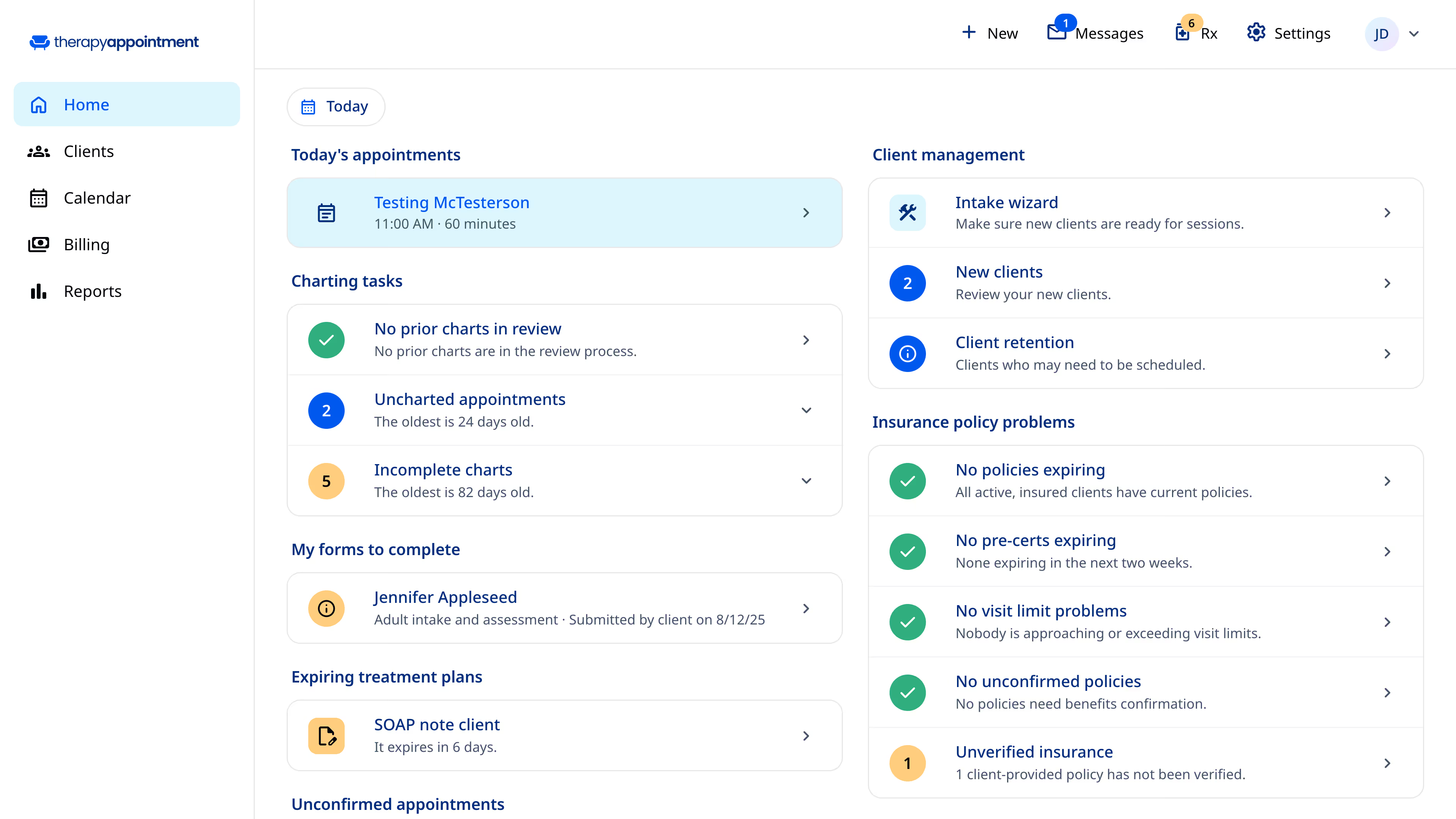
Home
Getting started in your client portal can feel a bit overwhelming — start here and review the rest. Home gives you an overview of your appointments, plus quick ways to schedule a new one or make a payment.
- Review your upcoming appointments at a glance.
- Tap Schedule new to book another visit.
- Use Make a payment for any outstanding balance.
- Jump to any other section from the left menu.
My profile
Manage the details that keep things running smoothly — reminders, saved credit cards, login credentials, and your contacts.
- Review your upcoming appointments at a glance.
- Tap Schedule new to book another visit.
- Use Make a payment for any outstanding balance.
- Jump to any other section from the left menu.
Forms
Access, complete, and view documents and forms from your client portal in one place — intake, consent, questionnaires, and anything else your practice sends you.
- Review your upcoming appointments at a glance.
- Tap Schedule new to book another visit.
- Use Make a payment for any outstanding balance.
- Jump to any other section from the left menu.
My messages
Your portal inbox — read and reply to messages from providers and staff, and share attachments securely. All messages live in one spot.
- Review your upcoming appointments at a glance.
- Tap Schedule new to book another visit.
- Use Make a payment for any outstanding balance.
- Jump to any other section from the left menu.
Billing
Access balance details, payment history, receipts, and statements. Make a payment, print receipts, or download statements — all in one section.
- Review your upcoming appointments at a glance.
- Tap Schedule new to book another visit.
- Use Make a payment for any outstanding balance.
- Jump to any other section from the left menu.
Insurance
Review or add your insurance details, upload a new card, or update plan info any time things change.
- Review your upcoming appointments at a glance.
- Tap Schedule new to book another visit.
- Use Make a payment for any outstanding balance.
- Jump to any other section from the left menu.
Can't find what you're looking for?
Reach out to your therapist's office for practice-related questions. For portal usage, our help center offers detailed guides.